How to change settings on multiple devices (Change configuration)
Use Change configuration to configure multiple systems. This action lets you use a device configuration template and/or a comma-separated values (CSV) file to configure AirLink OS or ALEOS routers.
- Device configuration templates are usually created from a single device in your company, then applied to multiple routers (of the same model and running the same software version) to create a consistent device configuration across your fleet.
- CSV files are used to configure or update unique values for individual routers when required. For example, each router may require unique log-in passwords or updated Wi-Fi credentials. Using a CSV file containing router serial numbers (for identification), you can apply unique values to each router identified in the file.
If you are already familiar with configuring multiple devices in AirVantage and ALMS, the Change configuration action replaces and unifies the Apply template, Replace template and Apply settings (CSV) actions. Apply template and Apply settings (CSV) will remain available in Apply Workflow(s) until further notice.
 Initializing Table Of Contents...
About Templates
Starting with Change configuration, you can select and apply a device configuration template to your routers. For more information about creating a template, see How to create and apply a template?.
For AirLink OS routers (AirLink XR90, XR80, XR60, RX55, EX400 and RX400) running software version 6.0.0 or later, you can apply a replace template (a “System Snapshot” template) to replace a router’s entire configuration.
Semtech recommends using a replace template to configure a complete working configuration from one router to another, particularly when deploying a fleet of new routers that need to have matching configurations, including passwords.
Applying a replace template will cause all settings that are not in the template to return to their default configuration on the target router.
After selecting a configuration template, you can view each setting contained in the template (under Common settings; up to 50 settings are displayed). These settings, and their values from the template, can be applied to the target routers as they are, or you can select up to 50 individual settings (under Unique settings) and, using a CSV file, customize them with unique values to be applied to individual devices. See About CSV files below.
About CSV files
With Change configuration, you can use a CSV file to apply one or several settings (up to 50) to multiple systems.
This CSV file can be used alone, or together with a template, to update router configurations.
For more information, see How to edit csv files.
An example use for this feature is to update the log-in password (for ACEmanager or AirLink OS) on your routers and give each one a unique value. You can populate the CSV with a new, unique log-in password for each router, and have AirVantage update each router the next time they check in.
After selecting the systems (all with the same device type and firmware) and then selecting the unique settings you want to change for all of them, you generate a .csv file, modify it, upload it and then apply it to change the settings on several systems at once. It is important to remember that you must select a firmware revision as a baseline for the systems you will update. This means that if you have a mix of device types in your fleet, you will need to update each group individually.
First Steps
To begin using Change configuration:
- Go to Monitor > Systems.
Select the systems you want to configure. For AirLink OS routers, the systems must be the same Gateway model running the same AirLink OS software.
OR
Skip this step if you have already prepared a CSV file to apply to routers (identified by serial number in the CSV file).
Click Change configuration.
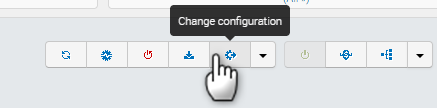
The Change configuration window appears. The window will appear differently depending on the system types and firmware. See the following sections.
Configuring AirLink OS Routers
The Change configuration windows for AirLink OS routers appear below.
The Apply settings and Replace settings options are available only for AirLink routers running AirLink OS 6.0.0 or later. Routers running earlier software have only the Apply settings option available.
Using Replace settings will cause all settings that are not in the template to return to their factory default configuration on the target router. Because of this, ensure that the template contains all settings to configure and maintain device connectivity, including passwords and SIM Templates. For more information about templates in AirLink OS, see Working with Device Templates.

The Change configuration options are:
- Template: Click to select a configuration template
- Common settings: A display of settings in the template
- Unique settings: Click to select any Common settings that you want to include in a CSV file to apply unique values to individual routers.
- CSV options: Generate and/or upload a CSV file.
- Advanced settings: Enable scheduling, timeout and notification for the updates
The available configuration options are described below.
Using a Template—Apply settings
This section describes how to configure routers using only a device configuration template.
To configure routers using a template:
In Change configuration, select a template. The Common settings window shows all the settings that will be applied to the router.
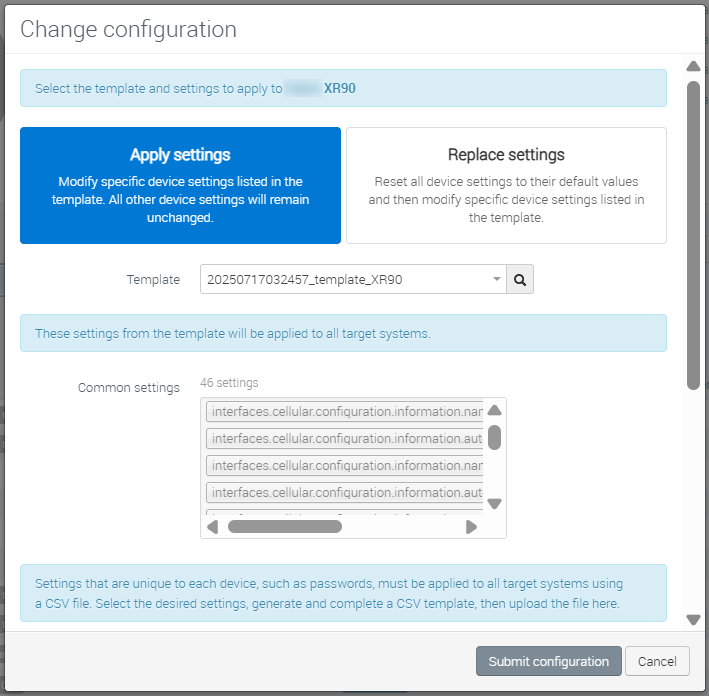
Add any Advanced settings (to schedule the update, for example), as required.
Click Submit configuration.
ALMS launches an Apply Settings operation.

Using a Template—Replace settings
This section describes how to configure routers using only a device configuration template.
To configure routers using a template and Replace settings:
In Change configuration, click Replace settings.
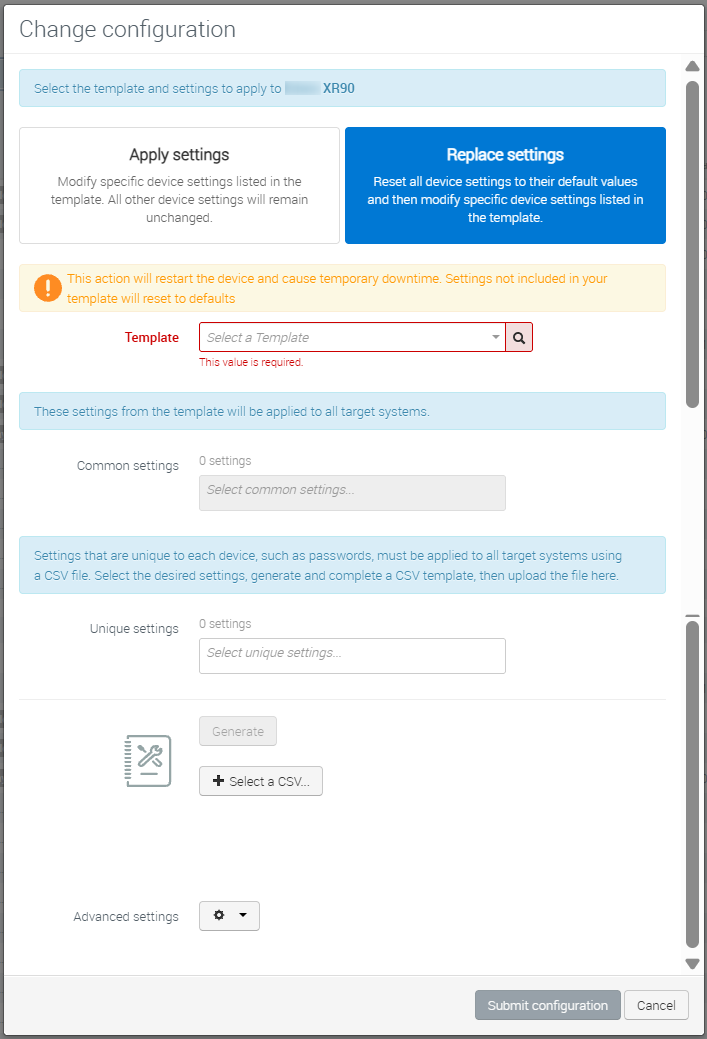
Select the template. The Common settings window shows all the settings that will be applied to the router.
Add any Advanced settings (to schedule the update, for example), as required.
Click Submit configuration.
ALMS launches a Replace configuration operation to validate the template and then apply the configuration.

You can follow the progress from the Operations list. For each system, at the next heartbeat, the settings will be configured, overwriting the previous values.
Using a Template with CSV—Apply settings
This section describes how to configure routers using a device configuration template and a CSV file to configure unique values per device.
To configure routers using a template and CSV file:
- In Change configuration, select a template. The Common settings window shows all the settings that will be applied to the router.
In Unique settings, select the settings (such as passwords) that you want to apply to the router(s) as unique values using a CSV file.
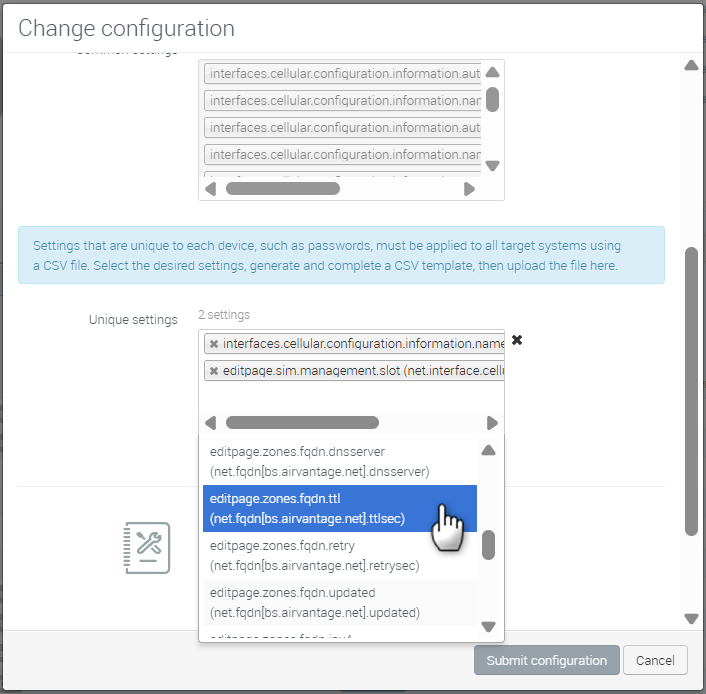
Click Generate to generate the CSV template.
After the CSV file generates, click Download your template.
Edit your CSV template as described in How to edit csv files, add custom values and save the file.
In Change configuration, click Select a CSV…, browse to your CSV file and then click Open.
Add any Advanced settings (to schedule the update, for example), as required.
Click Submit configuration.
ALMS launches an Apply Settings operation.
Using a Template with CSV—Replace settings
This section describes how to configure routers using a device configuration template and a CSV file to configure unique values per device.
To configure routers using a template and Replace settings:
- In Change configuration, click Replace settings.
Select the template. The Common settings window shows all the non-default settings that will be applied to the router.
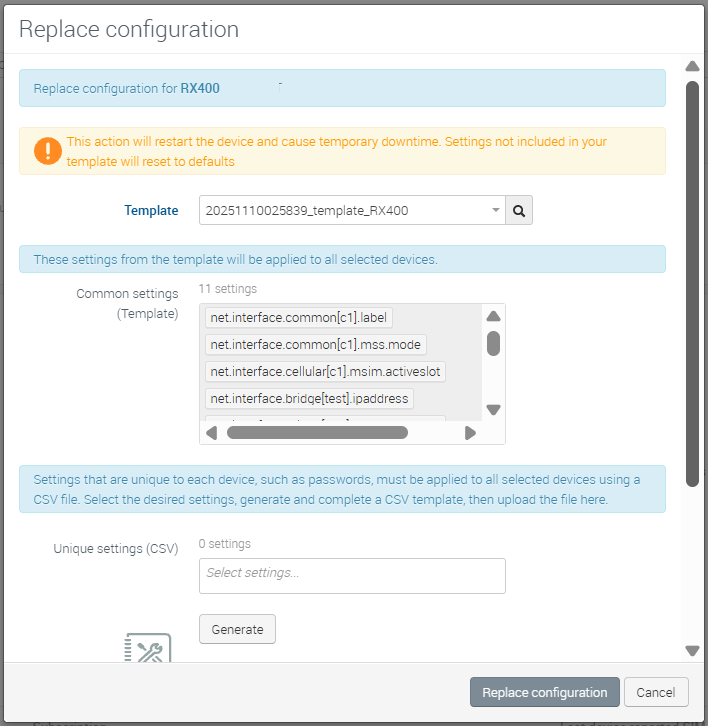
In Unique settings, select the settings (such as passwords) that you want to apply to the router(s) as unique values using a CSV file.
Click Generate to generate the CSV template.
After the CSV file generates, click Download your template.
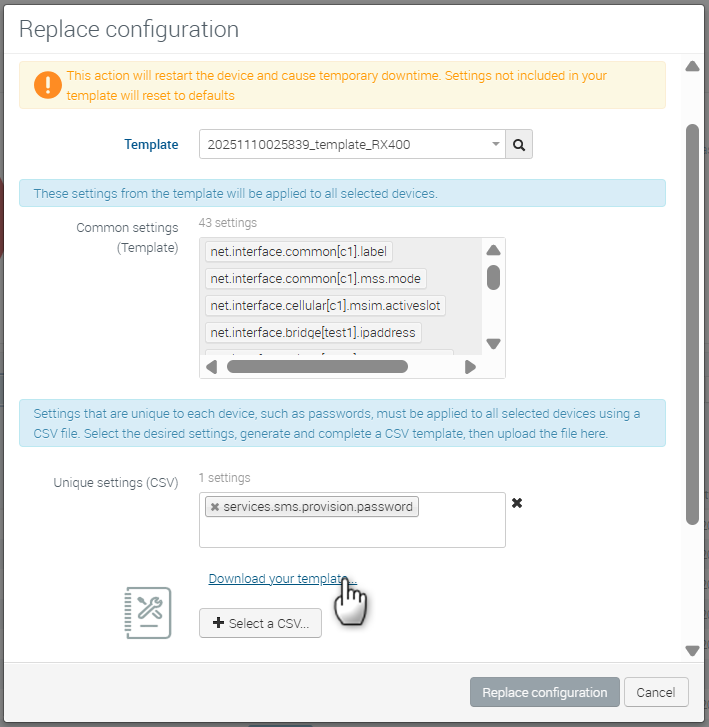
Edit your CSV template as described in How to edit csv files, add custom values and save the file.
In Change configuration, click Select a CSV…, browse to your CSV file and then click Open.
Add any Advanced settings (to schedule the update, for example), as required.
Click Submit configuration.
ALMS launches a Replace configuration operation to validate the template and then apply the configuration.
You can follow the progress from the Operations list. For each system, at the next heartbeat, the settings will be configured, overwriting the previous values.
Using a CSV only
This section describes how to configure routers using an existing CSV file populated with device serial numbers to configure unique values per device.
To apply a prepared CSV file to multiple routers, do not select any systems in Monitor > Systems.
To configure routers using an existing CSV file:
In Change configuration, click Select a CSV….
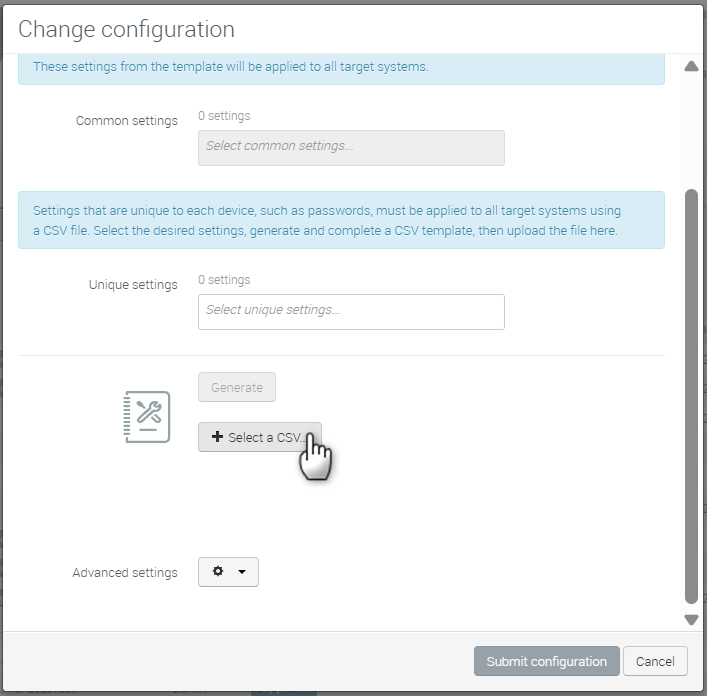
Browse to your CSV file and then click Open.
Add any Advanced settings (to schedule the update, for example), as required.
Click Submit configuration.
ALMS launches an Apply Settings (CSV) operation.

Configuring ALEOS Routers
The Change configuration window for ALEOS routers appears below.

The Change configuration options are:
- Template: Click to select a configuration template
- Common settings: A display of settings in the template
- Application: The router model and firmware version. This is automatically selected after a template is selected. If a template is not selected, you can select the Application and use the settings in the Application as the baseline for a CSV configuration file.
- Unique settings: Click to select any Common settings (or Application settings if a template is not selected) that you want to include in a CSV file to apply unique values to individual routers.
- CSV options: Generate and/or upload a CSV file.
- Advanced settings: Enable scheduling, timeout and notification for the updates
The available configuration options are described below.
Using a Template
This section describes how to configure routers using only a device configuration template.
To configure routers using a template:
In Change configuration, select a template.
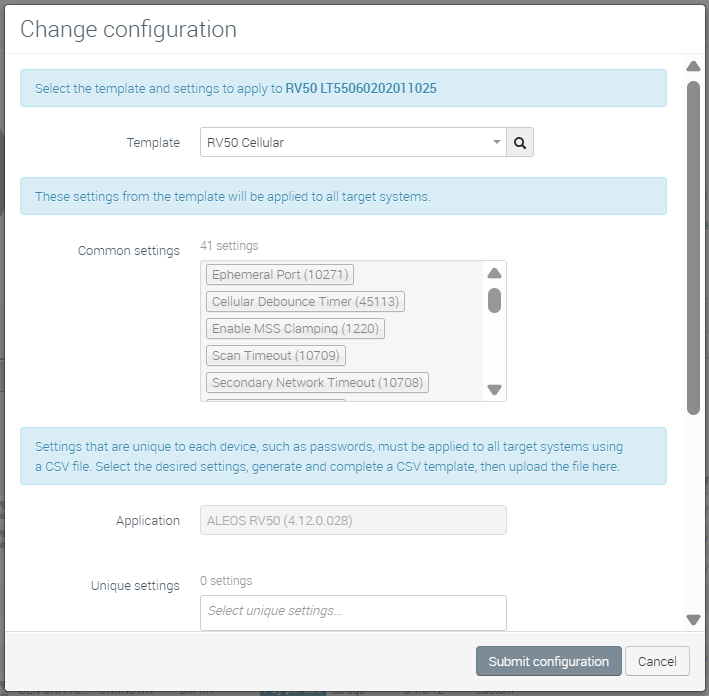
Add any Advanced settings (to schedule the update, for example), as required.
Click Submit configuration.
ALMS launches an Apply Settings operation.
Using a Template with CSV
This section describes how to configure routers using a device configuration template and a CSV file to configure unique values per device.
To configure routers using a template and CSV file:
- In Change configuration, select a template.
Select the Unique settings you want in your CSV file.
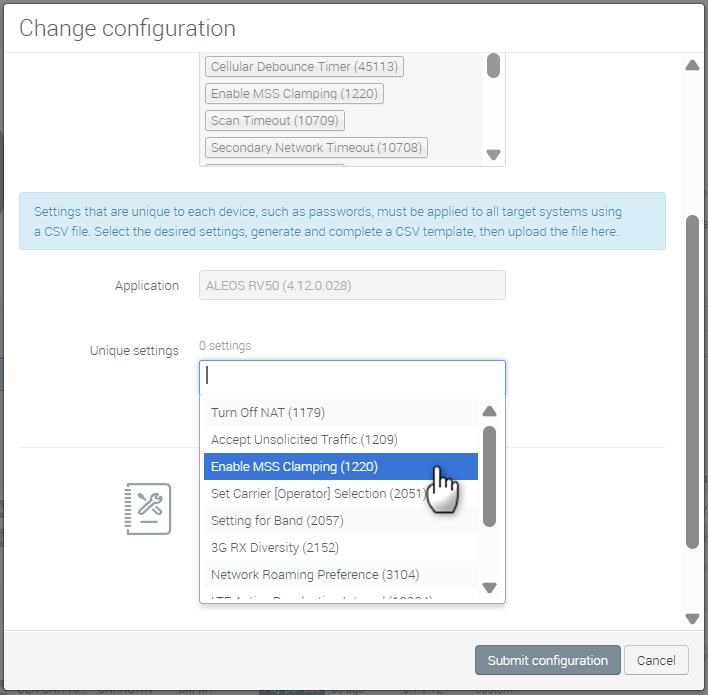
Click Generate and then click Download your template….
Edit your downloaded CSV file to add the new values for the settings you want to apply to each system.
In Change configuration, click Select a CSV…, browse to your CSV file and then click Open.
Add any Advanced settings (to schedule the update, for example), as required.
Click Submit configuration.
ALMS launches an Apply Settings operation.
Using a CSV only (generated from scratch)
This section describes how to configure routers using a new CSV file to configure unique values per device.
To configure routers using a new CSV file:
In Change configuration, select an Application—the device and software: ALEOS MP70 (4.12.0), for example. You can only change settings on identical systems.
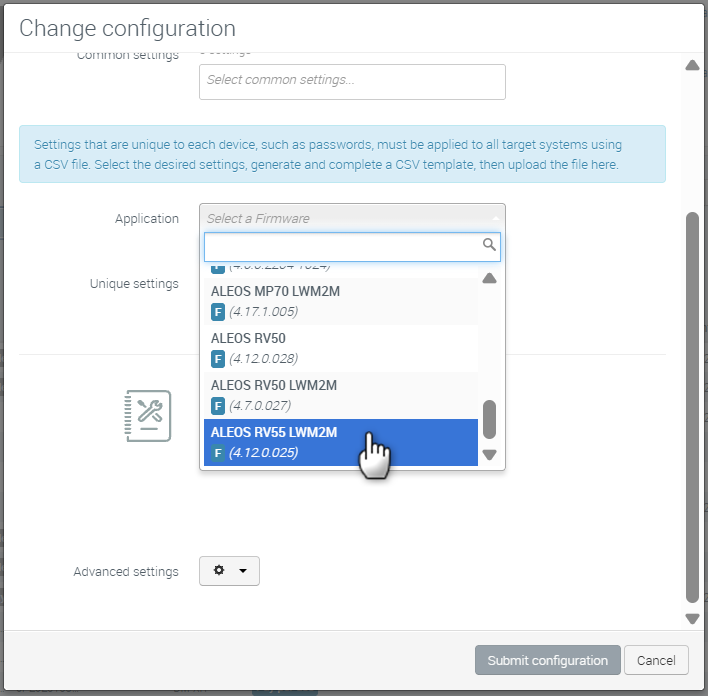
Select the Unique settings you want in your CSV file. Hint: You can enter text to search for settings by name or by ID number.
Click Generate and then click Download your template….
Edit your downloaded CSV file to add the new values for the settings you want to apply to each system.
In Change configuration, click Select a CSV…, browse to your CSV file and then click Open.
Add any Advanced settings (to schedule the update, for example), as required.
Click Submit configuration.
ALMS launches an Apply Settings (CSV) operation.
Using a CSV only (prepared)
This section describes how to configure routers using an existing CSV file to configure unique values per device.
You do not need to select any systems in Monitor > Systems to apply a prepared CSV file to multiple routers.
To configure routers using an existing CSV file:
In Change configuration, click Select a CSV….
Browse to your CSV file and then click Open.
Add any Advanced settings (to schedule the update, for example), as required.
Click Submit configuration.
ALMS launches an Apply Settings (CSV) operation.
Troubleshooting
Operations fail to launch
Operations may fail to launch or may generate errors in the following instances:
- You have selected both AirLink OS and ALEOS routers, or combined both types in a CSV file.
- You have selected different AirLink OS routers or firmware versions. See Working with Device Templates in the AirLink OS documentation for router and firmware version information.
- You have selected over 500 systems
- “Bad data type” errors caused by incompatible values for settings (entering text instead of a number, for example). Edit the CSV file with the correct value formats and re-submit the configuration.
- For AirLink OS routers, you can check datapaths and values for settings by enabling Dev Mode in the AirLink OS configuration (top right of the window) and locating the desired setting. Alternatively, you can open the .json template file and inspect the contents, and copy and paste the datapaths (labeled as “data” in the .json file) into your CSV file.
Ensure that you check operation details if you detect any issues with Change configuration.
Go to Monitor > Operations and search for Apply settings, Apply settings (CSV) and Replace configuration operations.
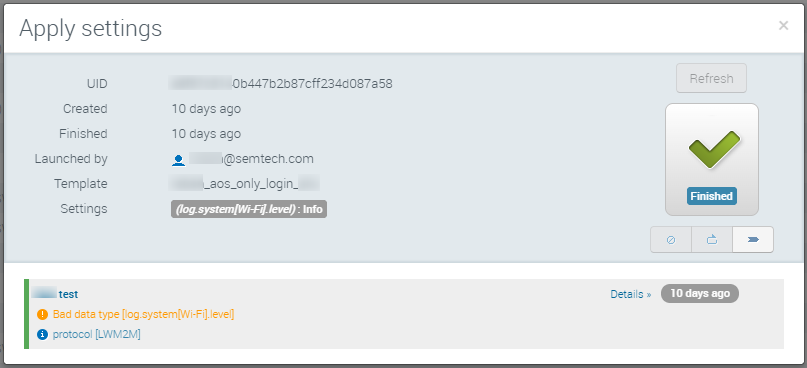
Check the operation details, and review the template settings, CSV values and the device state for any errors.
“Submit configuration” button is disabled
If the Submit configuration button is disabled:
- Confirm that you have selected (uploaded) your CSV file, or that the Unique settings field is empty.
- Ensure that your CSV file is populated with values
FAQ
Can I include a setting in a CSV file that was not listed in Unique settings?
No. Settings in a CSV file that were not in the AirLink OS template or ALEOS application will not be applied to the router. You must update the template to include every unique setting that you want to apply to your routers.
I have existing Apply Template/Apply settings (CSV)/Replace template operations that were scheduled before Semtech added this Change configuration feature. What will happen to these operations?
The scheduled operations will run as planned. The Change configuration feature is primarily a user-interface update, not an operational update.
If I select several AirLink OS routers, some running software version 6.0.0+ and some running earlier software, will the Replace configuration option show up?
Yes, but the Replace configuration operation will only apply to the routers running 6.0.0+, and the other routers will be excluded from the operation. Semtech recommends selecting routers with the same model, hardware features, and software version before applying a template.