 Searching...
How to Create a Renewal Quote
If you are the administrator for an ALMSC pre-paid account, you can generate renewal quotes for your AirLink routers. Instead of waiting for quotes to come from Semtech’s Renewals team, Renewals self-service lets you generate reference quotes for the devices and pre-paid offers in your account, so you can plan your budget accordingly.
Note that your profile must have Renewal quote read/write permission to generate a renewal quote.
The Renewal Quotations tool is for reference and budgeting purposes only and does not produce an official quote. For procurement purposes, please provide this document to your Semtech authorized reseller of choice for an official quote and pricing. Semtech does not sell directly to customers.
The Renewal Quotations tool includes devices whose service has expired, and whose service is due for renewal in the next 12 months.
The Renewal Quotations tool does not include devices that are not activated (in the Inventory state) or not due for renewal in the next 12 months.
Creating a Quote
To create a quote:
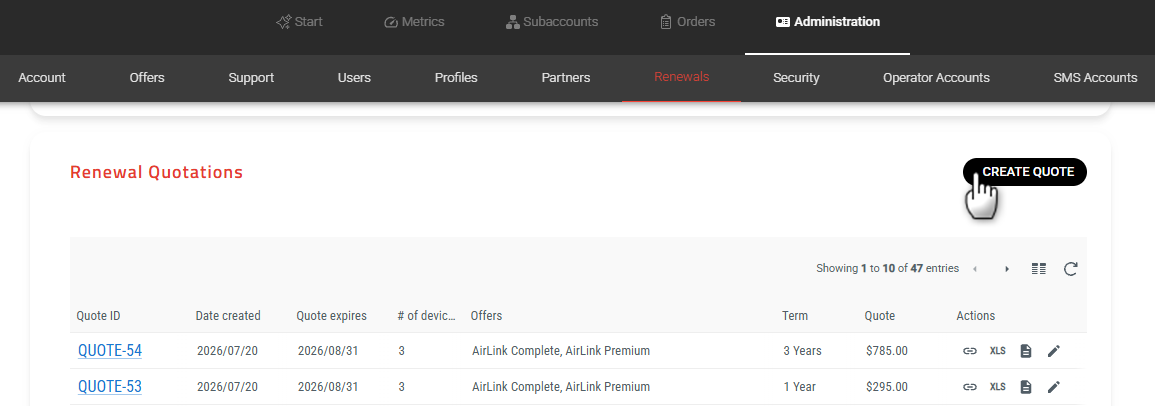
From Administration > Renewals, click Create Quote.
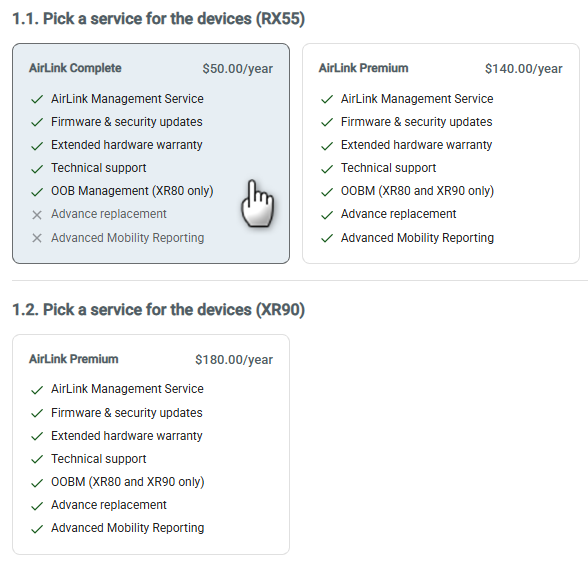
Select a service for the devices that are due for renewal in the next 12 months.
The available services depend on the devices and offers currently in your account. In this example, the account has RX55 and XR90 routers due for renewal. The page shows which offers are available for each type of device.
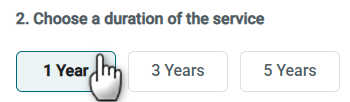
Select the duration of the service (1 Year, 3 Years or 5 Years).
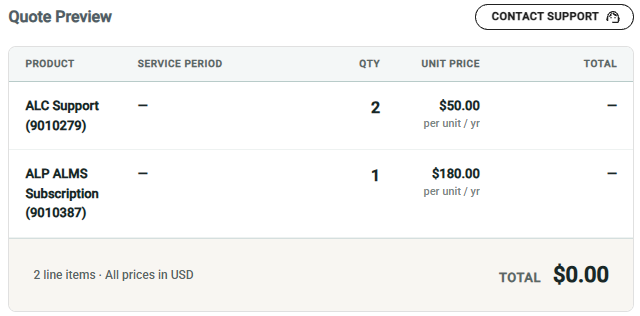
The quote in progress appears under Quote Preview.
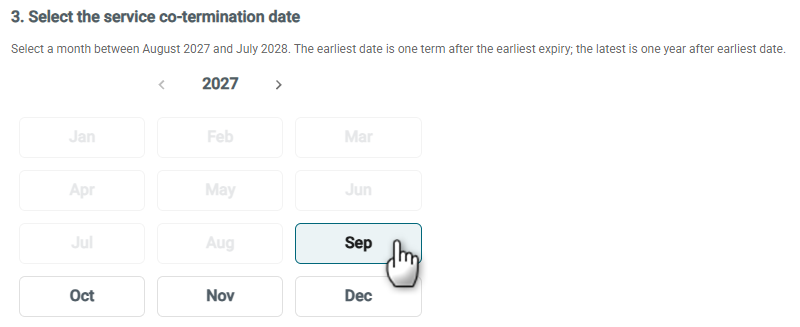
Select the service co-termination date. This applies a common end date for the renewed devices and service(s). See About Co-Termination Dates below.
Click Create Quote.
The Renewals home page appears, and your new quote appears in the list.
Note that quotes have an expiry date (seen in the Quote expires column), which is set to the end of the month after the quote’s creation date.
About Co-Termination Dates
The earliest co-termination date available is based on the month following the quote creation date plus the selected service duration. The last co-termination date extends one year past the earliest available date. You can select any month in that range. The system will pro-rate any totals for devices that will have service periods of less than or greater than the selected service duration.
For example, Device 1 in your account expires on September 1, 2027 and Device 2 expires on December 1, 2027. If you create a quote in December 2026 and select a service duration of one year, the available co-termination dates will start at January 2028.
The co-termination date range is calculated as follows:
- Start = the month after the quote date plus the service duration = January 2028
- End = 12 months after the start (inclusive) = December 2028
You can select any co-termination date from January 2028 to December 2028. If you select a co-termination date of August 2028, both devices will terminate at the end of August 31, 2028:
- Device 1 (expiring September 1, 2027, reporting to ALMS through 23:59h August 31, 2027) will have one year of service through August 31, 2028.
- Device 2 (expiring December 1, 2027, reporting to ALMS through 23:59h November 30, 2027) will have nine months of service through August 31, 2028, and its total price will be pro-rated accordingly.
All co-termination dates resolve to the last calendar day of the selected month (for example, February 28⁄29 or June 30). Any mid-month expiry dates in your account are always rounded up to month-end.
Renewal Quotation Actions
In the Actions column, you can:
- share a link to the quote details. The link opens the quote details page. If the quote has not expired, you can click Revise Quote on the quote details page to edit the quote and save it as a new quote.
- export the quote to an .xls file
- download the quotation as a PDF
- revise the quote

To revise a quote:
In the Actions column for the quote you want to revise, click
 (Revise quote).
-or-
Click the Quote ID in the table and then click Revise Quote.
Update the quote to pick a different service, change the duration, and/or select a different co-termination date as described in Creating a Quote above.
Click Revise Quote. The revised quote will be saved as a new quote.
 (Revise quote).
What’s Next?
After generating the reference quote, you can forward it to your Semtech authorized reseller for an official quote to procure from. Semtech does not sell direct to end customers.
If you have any other questions or concerns, please contact renewals-SWI@semtech.com .